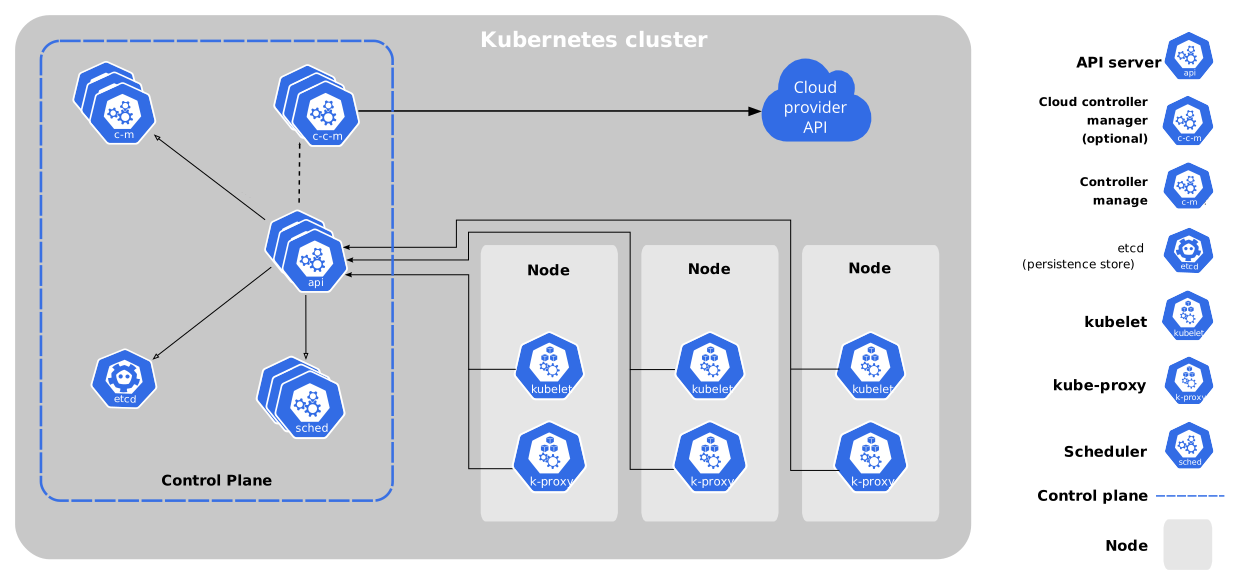
A step-by-step tutorial on how I set up my private Kubernetes cluster using kubeadm and Calico CNI.
Setting up my local network
Since I live in an apartment, my ZTE router defaults to a DHCP range of 192.168.1.1 – 192.168.1.255. This presented a problem — I needed static IPs for my Kubernetes nodes. To resolve this, I reconfigured the router’s DHCP pool to start from 192.168.1.50, allowing me to reserve 192.168.1.2 - 192.168.1.49 for static assignments, which is quite helpful because I also wanted VMs that run as docker daemons.
Initially, I experimented with using a virtual bridge for added network isolation. While it was more secure, it required me to SSH into a central VM just to access individual nodes. For usability, I switched to bridged networking so each node could be directly reachable from my LAN without extra hops.
Provisioning the Virtual Machines
To streamline VM provisioning, I used Cockpit on my main host, which made deploying Ubuntu 24.04 Jammy Jellyfish instances quick and seamless.
I created three virtual machines with the following specs:
| Hostname | vCPU | Memory | IP Address |
|---|---|---|---|
KUBE-MASTER-1 | 3 vCPU | 4 GiB | 192.168.1.11 |
KUBE-WORKER-1 | 2 vCPU | 2 GiB | 192.168.1.12 |
KUBE-WORKER-2 | 2 vCPU | 2 GiB | 192.168.1.13 |
Initially, I considered setting up a multi-master HA cluster, but for my current goal—preparing for the CKA exam—a single master node was more practical and easier to manage.
Step-by-step
- Update the repository and upgrade it
sudo apt update && sudo apt upgrade -y
- Open the required ports for the Master & Worker nodes
These are essential since Kubernetes consists of multiple components that need to communicate to each other to work. Some ephemeral ports might also be exposed to be used as a NodePort service. Ports and Protocols - Kubernetes Docs
KUBE-MASTER-1
# Expose the ports to Worker 1 & Worker 2
# Allow inbound traffic on Kubernetes Control Plane ports
sudo ufw allow from 192.168.1.12 to any port 6443 proto tcp
sudo ufw allow from 192.168.1.12 to any port 10250 proto tcp
sudo ufw allow from 192.168.1.13 to any port 6443 proto tcp
sudo ufw allow from 192.168.1.13 to any port 10250 proto tcp

# Optionally allow etcd communication (if needed)
sudo ufw allow from 192.168.1.12 to any port 2379:2380 proto tcp
sudo ufw allow from 192.168.1.13 to any port 2379:2380 proto tcp

# Allow traffic for NodePort Services (for worker node communication with the cluster)
sudo ufw allow 30000:32767/tcp
sudo ufw allow 30000:32767/tcp
KUBE-WORKER-1
# Kubernetes API server
sudo ufw allow from 192.168.1.11 to any port 6443 proto tcp

# Kubelet API (control plane talks to worker's Kubelet)
sudo ufw allow from 192.168.1.11 to any port 10250 proto tcp

# etcd client API (optional, if control plane hosts etcd)
sudo ufw allow from 192.168.1.11 to any port 2379:2380 proto tcp

# NodePort range (allow service traffic from workers)
sudo ufw allow from 192.168.1.11 to any port 30000:32767 proto tcp
sudo ufw allow OpenSSH
KUBE-WORKER-2
# Kubernetes API server
sudo ufw allow from 192.168.1.11 to any port 6443 proto tcp

# Kubelet API (control plane talks to worker's Kubelet)
sudo ufw allow from 192.168.1.11 to any port 10250 proto tcp

# etcd client API (optional, if control plane hosts etcd)
sudo ufw allow from 192.168.1.11 to any port 2379:2380 proto tcp

# NodePort range (allow service traffic from workers)
sudo ufw allow from 192.168.1.11 to any port 30000:32767 proto tcp
sudo ufw allow OpenSSH
- Turn off swap
This is important because we need to give Kubernetes full control over system memory management.
sudo nano /etc/fstab
#/etc/fstab, comment out to turn off swap
#/swap.img      none    swap    sw      0       0
- Install containerd, kubeadm, kubectl, kubelet
containerd = CRI for kubeadm kubeadm = kubernetes bootstrapping tool kubectl = access api server with kubectl kubelet = the brain of a kubernetes node
sudo apt install -y containerd

# Create default config
sudo mkdir -p /etc/containerd
containerd config default | sudo tee /etc/containerd/config.toml

# Enable and start the service
sudo systemctl restart containerd
sudo systemctl enable containerd
sudo apt-get update
sudo apt-get install -y kubelet kubeadm kubectl
sudo apt-mark hold kubelet kubeadm kubectl
- Setup IP Forwarding
sudo sysctl --system
```bash
sudo systemctl enable --now kubelet
sudo swapoff -a
cat <<EOF | sudo tee /etc/sysctl.d/k8s.conf
net.ipv4.ip_forward = 1
EOF
sudo sysctl --system
- Cluster Configuration setup For Master
nano kubeadm-config.yaml
# kubeadm-config.yaml
kind: ClusterConfiguration
apiVersion: kubeadm.k8s.io/v1beta4
kubernetesVersion: v1.21.0 # change version as needed
---
kind: KubeletConfiguration
apiVersion: kubelet.config.k8s.io/v1beta1
cgroupDriver: systemd
sudo kubeadm init --config kubeadm-config.yaml
For Worker
# kubeadm-config-worker.yaml
kind: KubeletConfiguration
apiVersion: kubelet.config.k8s.io/v1beta1
cgroupDriver: systemd
sudo mkdir -p /var/lib/kubelet
sudo containerd config dump | grep -i cgroup # if cgroup is false, modify it to true
sudo cp kubeadm-config-worker.yaml /var/lib/kubelet/config.yaml
sudo /etc/containerd/config.toml
# [plugins."io.containerd.grpc.v1.cri".containerd.runtimes.runc.options]
#  SystemdCgroup = true
sudo systemctl daemon-reexec
sudo systemctl restart containerd
sudo systemctl restart kubelet
- Install Calico CNI
kubectl apply -f https://raw.githubusercontent.com/projectcalico/calico/v3.27.0/manifests/calico.yaml
Reference:
I closely followed the official kubeadm documentation: [Kubeadm Documentation](https://kubernetes.io/docs/setup/production-environment/tools/kubeadm/install-kubeadm/