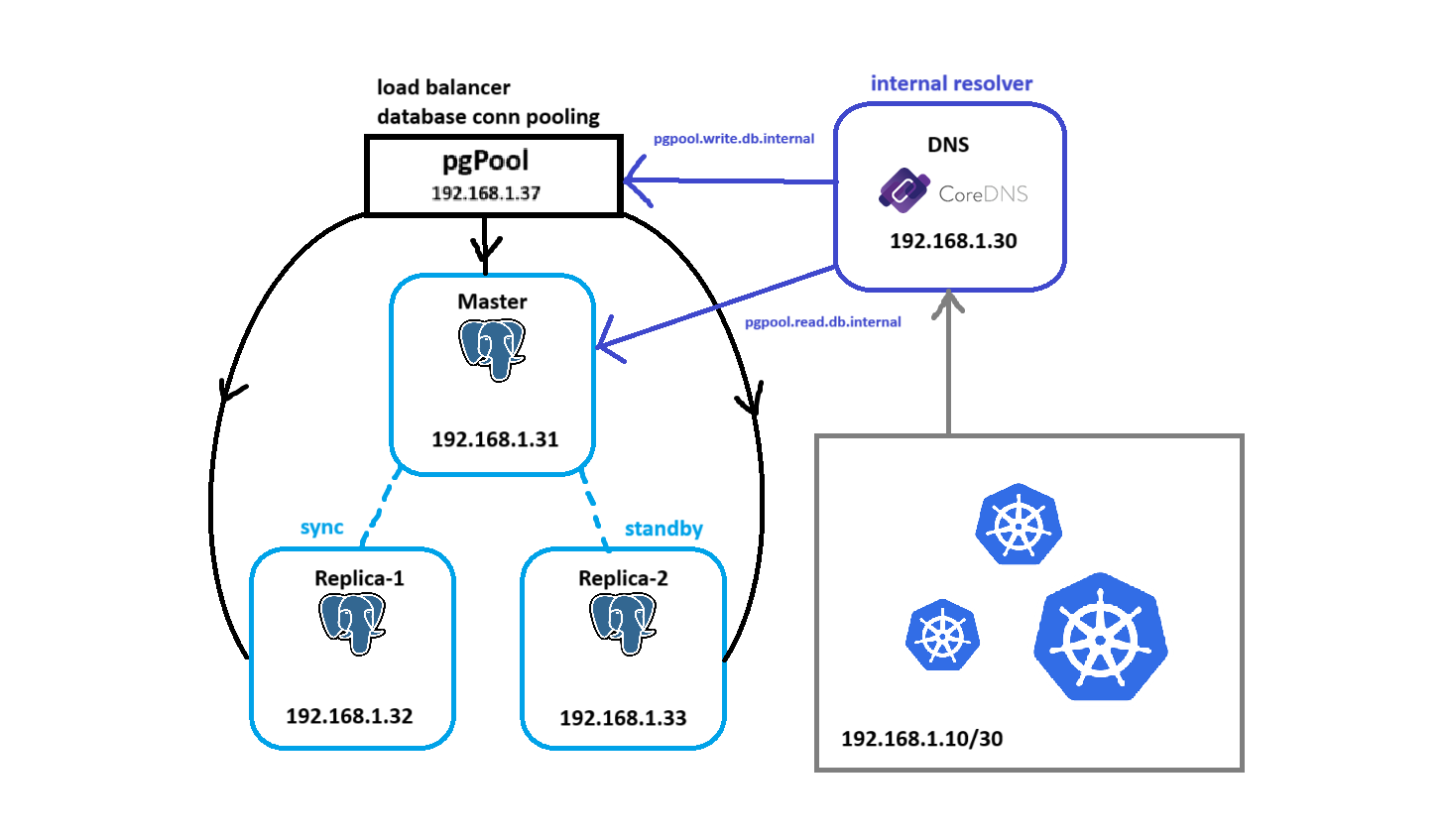
In the middle of developing my DevSecOps pipeline, I realized that my database was going to be a single-node server, that was initially the thought process. But after digging a lot more into database design, it was fascinating, hence I decided to build my database cluster.
In this blog, I will explore a variety of new database tools, debugging with it and learning new stuff. I’m motivated because I understood these stuff when prepping for the AWS Solutions Architect, but I never tried provisioning it hands-on. I will not cover pgPool Watchdog’s High Availability and postgres automatic failover, most of these stuff are properly documented at pgPool documentation.
PostgreSQL Cluster
Provisioning the PostgreSQL Nodes
I provisioned my database cluster environment with these VM details:
| Hostname | vCPU | Memory | IP Address |
|---|---|---|---|
POSTGRESQL-MASTER | 2 vCPU | 4 GiB | 192.168.1.31 |
POSTGRESQL-REPLICA-1 | 2 vCPU | 2 GiB | 192.168.1.32 |
POSTGRESQL-REPLICA-2 | 2 vCPU | 2 GiB | 192.168.1.33 |
First, update the repositories and then install postgresql server along with the client
sudo apt update
sudo apt install postgresql postgresql-contrib
On the MASTER node, make these configurations:
The
postgresql.confare up to you, just make sure the hot_standby is on and the listen address is ‘*’# postgresql.conf listen_addresses = '*' wal_level = replica max_wal_senders = 10 wal_keep_size = 256MB hot_standby = onpg_hba.confdecides whether you want to grant login attempt from a client, in this case we want to give the role replicator from192.168.1.32&192.168.1.33a chance to access the master WAL (write ahead log)#pg_hba.conf host replication replicator 192.168.1.32/32 md5 host replication replicator 192.168.1.33/32 md5Creating a seperate role is crucial for seperation of concerns, in this case we’ll make the role
replicator-- type psql in the terminal, you'll automatically login to the server CREATE ROLE replicator WITH REPLICATION LOGIN ENCRYPTED PASSWORD 'strongpassword';
- On the REPLICA nodes, make these configurations:
- Flush out
/var/lib/postgresql/14/main, just to ensure consistencysudo rm -rf /var/lib/postgresql/14/main - Clone the primary PostgreSQL server to initalize a standby replica
pg_basebackup -h 192.168.1.31 -D /var/lib/postgresql/14/main -U replicator -Fp -Xs -P -R
Setting up pgPool
Setting up the pgPool using the correct version is crucial, I used a wrong version before and it had a health_check bug where it couldn’t detect healthy nodes even though the credentials were correct
My pgPool settings were very light since it just acts as a pool, here are my settings:
| Hostname | vCPU | Memory | IP Address |
|---|---|---|---|
PGPOOL | 2 vCPU | 2 GiB | 192.168.1.37 |
I recommend using this pgPool documentation to install the pgPool in the server pgPool documentation. I will not share all the steps here because the documentation there is crystal clear.
One thing I did is I made my own systemd for pgPool, so that I could just easily use systemctl to start, restart, stop, and enable the service. Make sure that you adjust the paths in the systemd configuration.
Here is the systemd config for pgpool service:
# /etc/systemd/system/pgpool.service
[Unit]
Description=Pgpool-II
After=network.target postgresql.service
Requires=network.target

[Service]
Type=simple
User=pgpool
Group=pgpool
ExecStart=/usr/local/bin/pgpool -f /usr/local/etc/pgpool.conf -n
Restart=always
ExecStartPre=/bin/mkdir -p /run/pgpool
ExecStartPre=/bin/chown pgpool:pgpool /run/pgpool

[Install]
WantedBy=multi-user.target
Edit the configuration file at
/etc/pgpool2/pgpool.conflisten_addresses = '*' port = 5432 backend_hostname0 = '192.168.1.31' backend_port0 = 5432 backend_weight0 = 1 backend_flag0 = 'ALLOW_TO_FAILOVER' backend_hostname1 = '192.168.1.32' backend_port1 = 5432 backend_weight1 = 1 backend_flag1 = 'ALLOW_TO_FAILOVER' backend_hostname2 = '192.168.1.33' backend_port2 = 5432 backend_weight2 = 1 backend_flag2 = 'ALLOW_TO_FAILOVER' master_slave_mode = on master_slave_sub_mode = 'stream' load_balance_mode = off replication_mode = off enable_pool_hba = onEdit all the
pg_hba.conffile on all nodes (master & replica)# this could be more restrictive, i wanted to make it fast host all all [postgres-subnet]/24 md5Create an encryption key to
/root/.pgpoolkeyecho "mysecurekey123" | sudo tee /root/.pgpoolkey > /dev/nullUse
pg_encto encrypt the password with the specified username and password, this credential will be encrypted with the encryption keysudo pg_enc -m -u postgres -f /etc/pgpool2/pgpool.conf db password: # insert db password hereRestart the service and check the status
sudo systemctl restart pgpool2
sudo systemctl status pgpool2
- Tip: If you need to change socket path, log path, or any other path, configure the
pgpool.confto change it
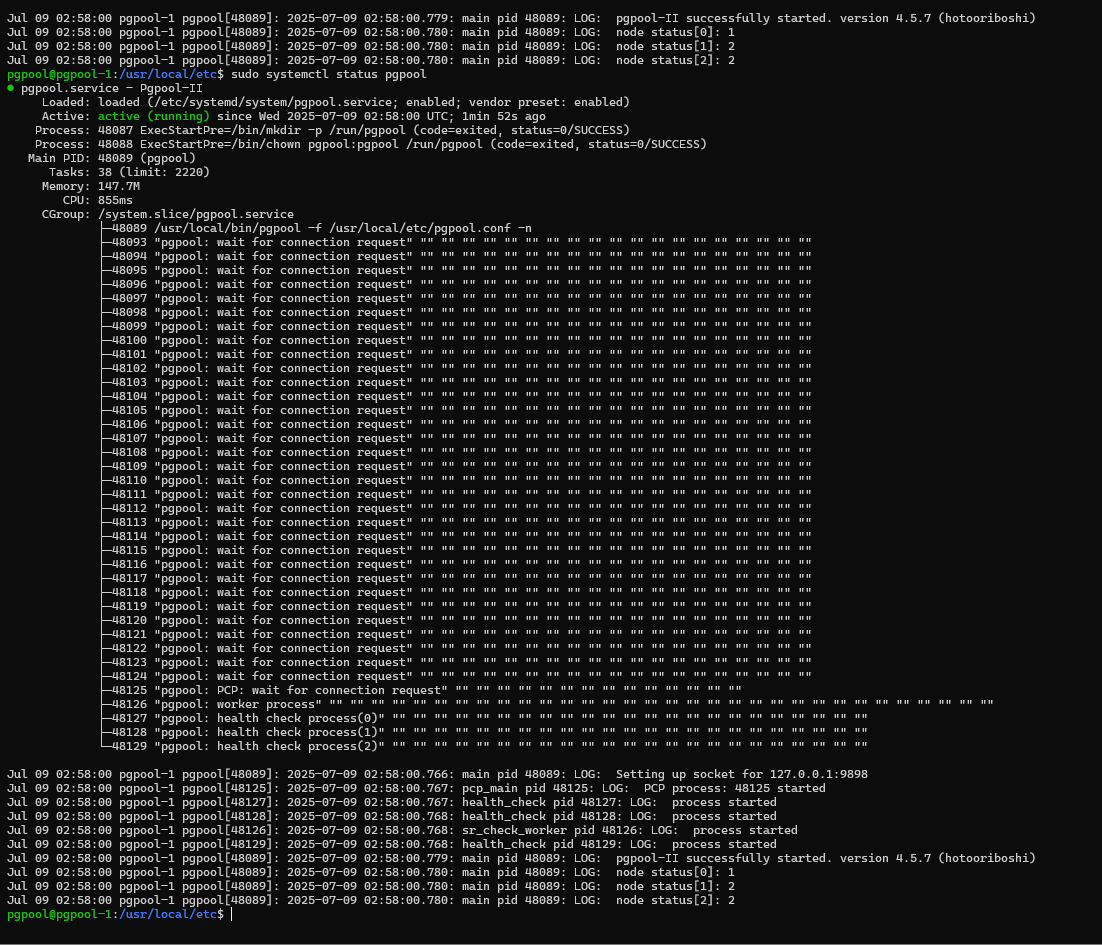
The image below should be the result of showing the status:
Configuring synchronous replication
Before configuring, we need to understand how replication works in postgresql, here are some essential replication methods:
- Synchronous Replication
Master waits for at least one replica to acknowledge the transaction before committing.
Guarantees zero data loss on replica if master crashes (for committed txs)
Slower due to network + I/O wait
synchronous_standby_names = 'FIRST 1 (replica1, replica2)'Use case: Strong consistency guarantees, Apps require immediate replication of data
- Asynchronous Replication
- Master does not wait for replica acknowledgment before committing a transaction.
- Fastest and lowest-latency
- Risk: Recent data may be lost if the master fails before the replica catches up.
- Use case: Performance over Consistency, Replicas are geographically distributed
- Quorum
Master waits for N out of M replicas to acknowledge before commit
More flexible than traditional sync
Reduces the “single-point delay” problem
synchronous_standby_names = 'ANY 2 (replica1, replica2, replica3)'Use case: High availability + durability, Avoids single-node bottlenecks like sync does
Master Node Configuration
- Edit the
postgresql.confwal_level = replica max_wal_senders = 10 wal_keep_size = 64 # or more, if needed synchronous_standby_names = 'FIRST 1 (replica32, replica33)' synchronous_commit = on
Replica Node Configuration
- Add application_name to the primary_conninfo
primary_conninfo = 'user=replicator password=??? application_name=replica32 host=192.168.1.31 port=5432 sslmode=prefer sslcompression=0 sslsni=1 ssl_min_protocol_version=TLSv1.2' - Override the
postgres.auto.conffilesudo sed -i '/primary_conninfo/d' /var/lib/postgresql/14/main/postgresql.auto.conf - Restart the app
sudo systemctl restart postgresql@14-main - Use psql to any of the node and check for stat replication, it should look like this
psql -c "SELECT * FROM pg_stat_replication;"pid | usesysid | usename | application_name | client_addr | client_hostname | client_port | backend_start | backend_xmin | state | sent_lsn | write_lsn | flush_lsn | replay_lsn | write_lag | flush_lag | replay_lag | sync_priority | sync_state | reply_time -------+----------+------------+------------------+--------------+-----------------+-------------+-------------------------------+--------------+-----------+-----------+-----------+-----------+------------+-----------+-----------+------------+---------------+------------+------------------------------- 87742 | 16384 | replicator | replica33 | 192.168.1.33 | | 33582 | 2025-07-09 16:52:36.825045+00 | | streaming | 0/4098450 | 0/4098450 | 0/4098450 | 0/4098450 | | | | 2 | potential | 2025-07-10 02:47:34.589237+00 87743 | 16384 | replicator | replica32 | 192.168.1.32 | | 57990 | 2025-07-09 16:52:36.825195+00 | | streaming | 0/4098450 | 0/4098450 | 0/4098450 | 0/4098450 | | | | 1 | sync | 2025-07-10 02:47:34.27454+00 (2 rows)
Go Server
Coding a Simple Server
I built a simple backend server code just to test the database connection, located at Backend Github Repo
The .env contains two database connections, one which refers to the read database and one to the write database, this data is injected to the container from a Kubernetes secret.
READ_DATABASE_URL=
WRITE_DATABASE_URL=
Building the Dockerfile
- The dockerfile is as simple as downloading the Go modules, building the binary, and exposing it to 8080
FROM golang:1.23 AS builder

WORKDIR /app

COPY go.mod go.sum ./
RUN go mod download

COPY . .

RUN CGO_ENABLED=0 GOOS=linux GOARCH=amd64 go build -ldflags="-s -w" -o server ./cmd/api

FROM alpine:latest

WORKDIR /app

COPY --from=builder /app/server .

EXPOSE 8080

CMD ["./server"]
Pushing it to Github Container Registry (GHCR)
I haven’t set up my CI/CD server yet, and my Docker Hub is hitting the free limits, so I found the best alternative Github Container Registry which is already in Github.
I just needed to create a personal access token with registry push permissions, and the rest is as easy as docker login, docker tag, docker push.
Kubernetes
Manifests & Objects
I created the simplest deployment file possible :
apiVersion: apps/v1
kind: Deployment
metadata:
creationTimestamp: null
labels:
  app: backend-paragon
name: backend-paragon
namespace: backend-paragon
spec:
replicas: 3
selector:
  matchLabels:
    app: backend-paragon
strategy: {}
template:
  metadata:
    creationTimestamp: null
    labels:
      app: backend-paragon
  spec:
    containers:
      - name: backend
        image: ghcr.io/lgkentang/backend-paragon:0.1.0-dev
        ports:
          - containerPort: 8080
        envFrom:
          - secretRef:
              name: backend-paragon-secret
status: {}
Making the secret
kubectl create secret generic backend-paragon-secret -n backend-paragon --from-env-file=.envI noticed some errors regarding the container, when i log the contents out, it turns out there was a parsing problem with the .env
- The solution was to remove the quotes from the .env so that it could be encoded properly
2025/07/08 21:56:58 No .env file found or failed to load it 2025/07/08 21:56:58 ❌ Unable to connect to write DB: cannot parse [database_url]: failed to parse as keyword/value (invalid keyword/value) master-1@kube-master-1:~/kubernetes/production/backend-paragon$ - There was also a second problem where my K8s nodes didn’t have access to the database
- The solution was to just add those IP’s to all the replicas and the master node pg_hba.conf
  2025/07/08 21:59:34 ✅ Connected to WRITE DB
  2025/07/08 21:59:34 ✅ Connected to READ DB
  2025/07/08 21:59:34 Running schema migration...
  DB Initialized
  DB Deferred
  Router Created
  2025/07/08 21:59:34 ❌ Failed to initialize schema: failed to connect to `user=pgpool database=postgres`:
  192.168.1.31:5432 (192.168.1.31): server error: FATAL: no pg_hba.conf entry for host "192.168.1.12", user "REDACTED", database "REDACTED", SSL encryption (SQLSTATE 28000)
  192.168.1.31:5432 (192.168.1.31): server error: FATAL: no pg_hba.conf entry for host "192.168.1.12", user "REDACTED", database "REDACTED", no encryption (SQLSTATE 28000)
- The solution was to remove the quotes from the .env so that it could be encoded properly
CoreDNS
A simple tweak to the CoreDNS ConfigMap inside the Kubernetes to redirect the traffic to the PostgreSQL servers
- Edit the CoreDNS configmap
kubectl edit configmap coredns -n kube-system - Update the Corefile, adding two additional DNS redirections
Corefile: | .:53 { errors health { lameduck 5s } ready kubernetes cluster.local in-addr.arpa ip6.arpa { pods insecure fallthrough in-addr.arpa ip6.arpa ttl 30 } hosts { 192.168.1.37 pgpool.write.db.internal 192.168.1.31 pgpool.read.db.internal fallthrough } prometheus :9153 forward . /etc/resolv.conf { max_concurrent 1000 } cache 30 loop reload loadbalance } - Execute into the container and install dnsutils for nslookup
k exec -it web-59fd54cc9b-jkcpp -- bash
apt update
apt install dnsutils
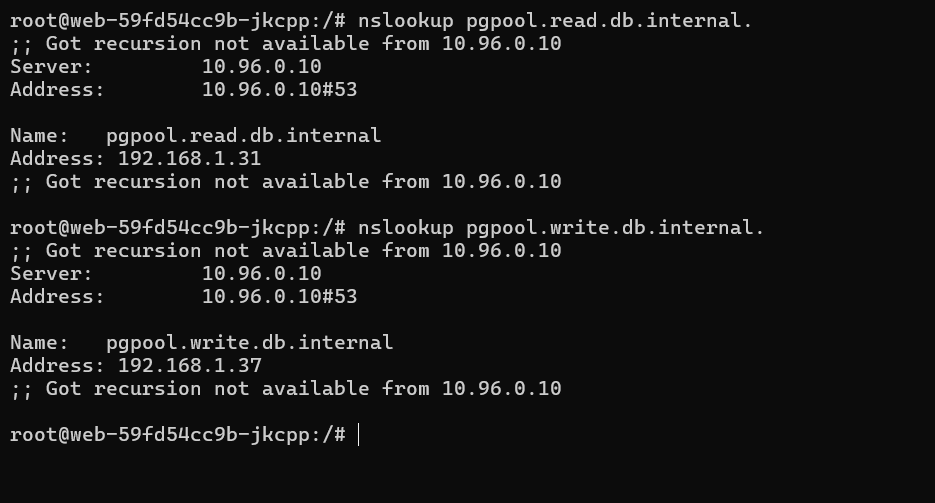
This is the result of the nslookup:
- Edit the CoreDNS configmap
Testing Connectivity
After the deployment suceedeed, it is time to actually test the application. I expoed the service as a ClusterIP service, so that I could just exec to a container and use Kubernetes internal DNS to lookup the service easily.
kubectl create service clusterip backend-paragon --tcp=8080:8080

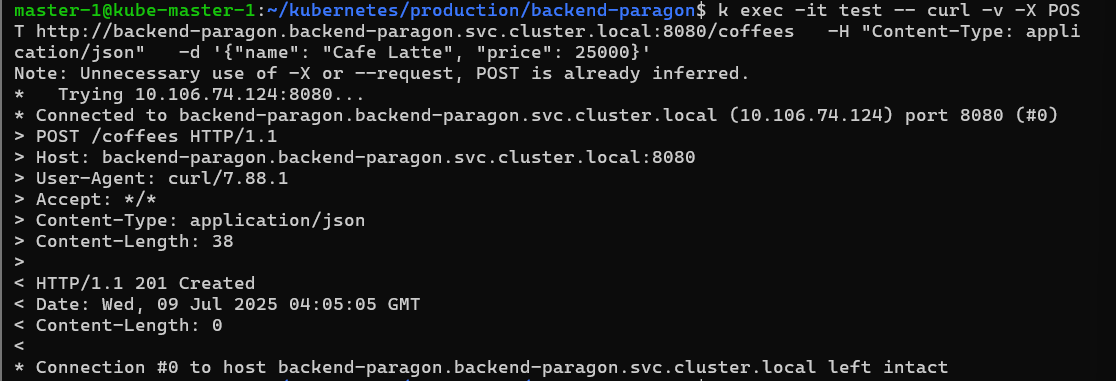
As you can see, both operations was sucessfully completed, however a minor bug is that I haven’t setup the schema to auto increment ID, so it appears to be empty in the table when retreiving it. I will polish the backend later upon pipeline completion.